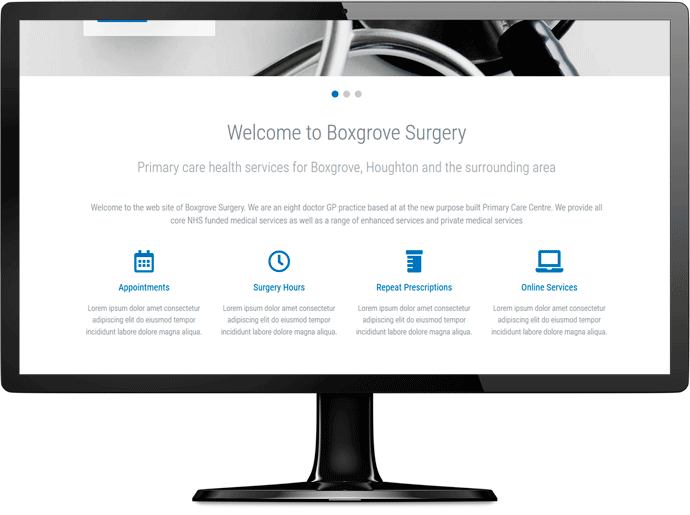
Our lightweight content management system is our preferred option for straightforward, everyday website updates. Its intuitive 'live-page view' lets you edit the page as it appears on your website and see how your changes will look before publishing them.
Our website editor is incredibly easy to learn and use and we will provide you with several streaming videos and a training manual that will allow you to become proficient at using the system to its full potential very quickly. Remote tuition can also be arranged for clients that need extra help, though the quality of our training material means that no-one has yet needed this option.
Our CMS gives you the capability to add multiple editors, and you can limit which pages of the site they can edit and the editing features they have access to.
Prefer WordPress? We can build your website with that too. If your team already knows WordPress, including practices moving from a former Silicon Practice website, we can help you keep a familiar editing experience.
WordPress can be run securely with the right setup and ongoing care. Its core software, themes and any plugins need regular updates, and each added component brings its own maintenance and security considerations. We will discuss the editing experience and ongoing support arrangements for your chosen platform before you decide.
The walkthrough below shows how editing works with our lightweight CMS. WordPress uses a different editing interface.
Log in to our powerful content management system with your unique username and password.
Multiple individual editors can be added and different roles assigned so that they can have full editing priviliges or restricted editing capabilites on certain pages of the site only.

Once you are logged into the content management system a list of the pages that you have been given access to edit will appear on-screen. Select the page you wish to update and it will then load within the website editor.
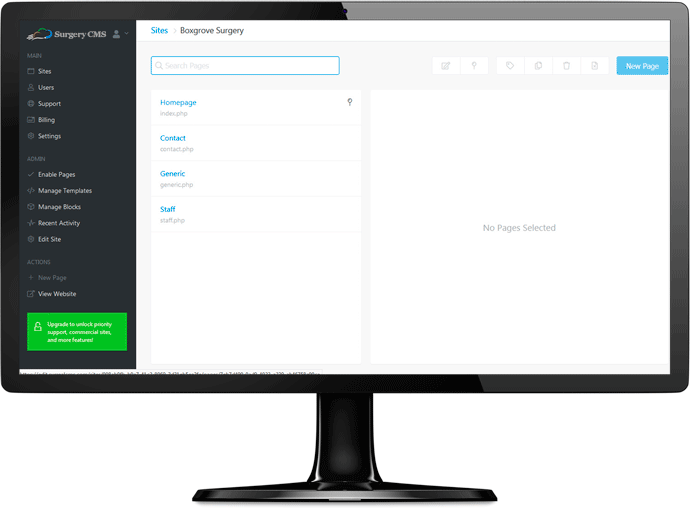
Our class-beating content mangement system features a simple editing interface that allows you to see and edit the page as it is in a 'live-page' view which is a major benefit over the Wordpress editor and many other complicated and unwieldy online website editors.
Use this easy-to-learn editor to update text content, add new content, change and insert photos, add links to external sites and upload documents for patients to view or download.

Most pages of your website will feature one editable content region or block, but some pages will have more than one editable block. When you have finished editing one content region you can make further edits in another block before publishing the page.

When you have finished editing the web page click on the 'publish' button to put the updated page live on your website. There is also an option to save a draft of the edits and updates you have made and log back in to publish the page at another time.

Once you have published your page to the internet use the 'view web page' link in the editor to open the live, published version of the page to check that the changes you have made are present. If you are happy with your edits you can leave the system or edit and publish another page.
Our editor features the ability to undo your edits and also allows you to restore previously published versions of the web page which you can edit and publish.